

Configure Payment Links UI
Note: Payment Links can currently only be configured via APIs. Dashboard-based configuration is under development and this section will be updated once available.
Available Configurations
UI Configurations
Payment Link UI can be configured at the business profile level, and this configuration is used when payment links are created under that profile. You can also override this by providing UI configurations during individual payment link creation.Sample Configuration:
UI Customization Options
Primary Color
The primary color of the payment link UI can be set using the theme field in the configuration. This color is represented as a hex value. Example:"#2167AE"
Primary theme
Merchant Logo
You can display a custom logo in the details section of the payment links by providing a URL. Example:https://pesaswap.io/favicon.ico
Primary theme
Merchant Name
Customize the display name shown in the details section of the payment links. Example:"Pesaswap Inc."
Custom seller name
Dynamic Details
Include a list of key-value pairs in the details section of payment links. This list can be customized with optional configurations for each entry. Note: The list is displayed in the specified order. Use the position attribute to control the sequence of entries.
Background Image
Customize the background image of the details section. Example:Details Section Layout
Choose a layout for the details section of the payment links. Default Layout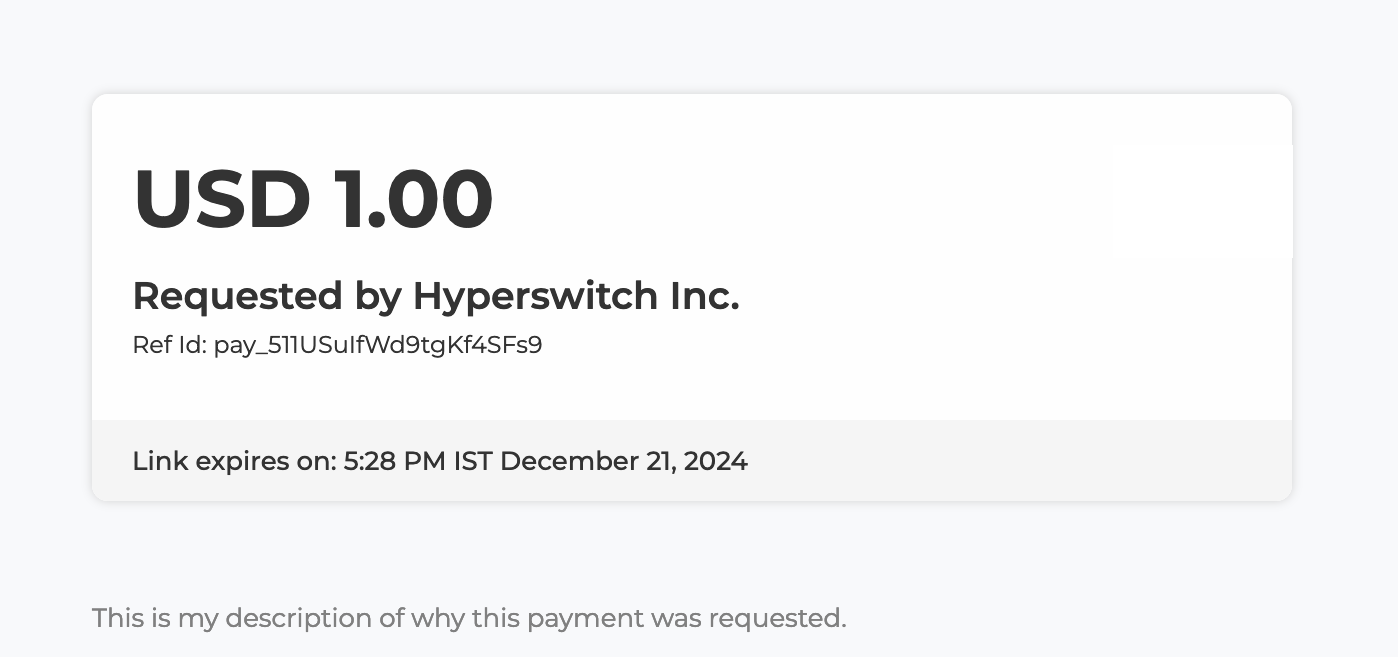 Layout 2
Contact support for custom layout additions.
SDK Layout
Configure the layout for the payment widget using available SDK layouts. Example:"accordion" or "tabs"
 Accordion layout
Display Only the Payment Widget
Set a boolean value to render only the payment widget in the payment links. Defaults to false. Render only the payment widget
Enable Saved Payment Methods
Enable rendering of saved payment methods and allow customers to save new ones in the payment widget. This is available only for secure payment links. Save payment method checkbox
 Saved payment methods
Hide Card Nickname Field
Sethide_card_nickname_field: true to remove the nickname input for saved cards.
 Hidden card nickname field when card is requested to be saved
 Visible card nickname field when card is requested to be saved
Show Card Form by Default
Set a boolean value to control the default form rendered in the payment widget. Enabling this shows the card payment form by default when a payment link is opened.Payment Button Text
Customize the call-to-action button. Example:"Proceed to Payment!"
 Custom text for payment widget’s button
Other Configurations (Business Profile Level Only)
Domain Name
Set a custom domain for hosting payment links.Must be enabled before use. See docs on [Custom Domain Setup].
Multiple Style IDs
Define multiple styles under a profile using style IDs. Example:payment_link_config_id field when creating a payment link to apply a specific style.
Allowed Domains
List of trusted domains (used only for secure links) where payment links can be embedded in an iframe. Example:["localhost:5500", "my.custom.domain.com"]
Branding Visibility
Control whether Pesaswap branding appears in the payment links. Visible branding (default behaviour)
Hidden branding
Visible branding (default behaviour)
Hidden branding
true→ Branding shown (default)false→ Branding hidden