

Welcome to Pesaswap!
This guide will help you complete your business profile so you can start accepting payments from customers right away. Don’t worry - we’ll walk you through everything step by step!Quick Start - What You Need to Do
Your account is ACTIVE and ready to receive payments! But to unlock all features and build customer trust, you need to complete your business profile.How to Access Your Business Profile
Step 1: Log Into Your Account
- Go to your Pesaswap merchant dashboard
- Log in with your username and password
- Look for the “Business Details” section on your main page
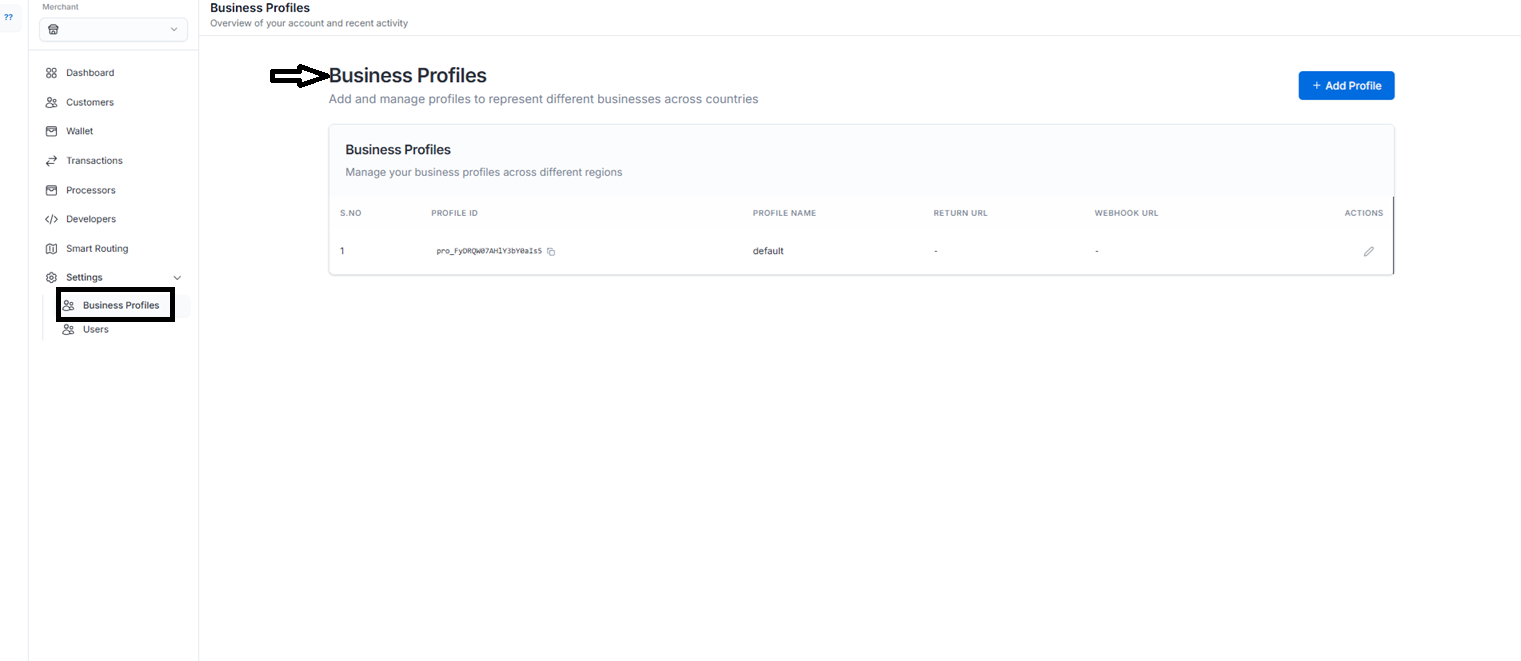
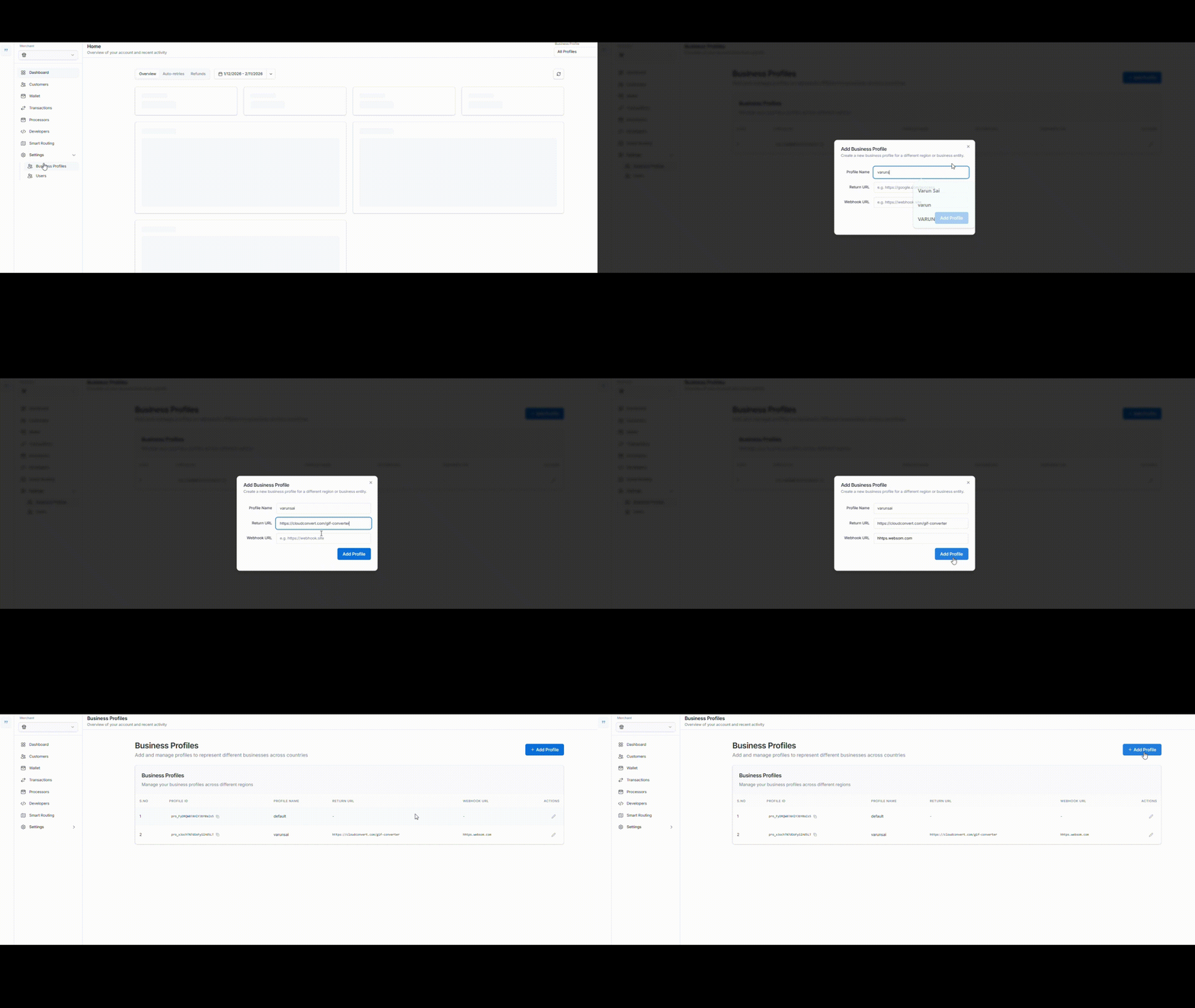
Step 2: Find Your Profile Information
You’ll see a section that looks like this:- Business Profile (currently shows “default”)
- Business Details with an “Edit” button
- Your Business Information with several fields
Understanding Your Current Profile
What’s Already Set Up:
- Business Name: Pesaswap (this is your business in our system)
- Merchant ID: merchant_1755574128 (your unique business number - keep this safe!)
- Account Status: Active (you can receive payments now)
What You Need to Add:
- Email Address: Currently shows “Not provided”
- Phone Number: Currently shows “Not provided”
- Business Address: Currently shows “Not provided”
- Website: Currently shows “Not provided” (optional)
How to Edit Your Business Information
Finding the Edit Button
Look for the “Edit” button in your Business Details section. It’s usually:- Next to your Business Name, OR
- In the Business Information area
Opening the Edit Form
- Click the “Edit” button
- A form will open with empty fields for you to fill out
- You’ll see all the information you can add or change
Adding Your Email Address
Why You Need This:
- Get notifications when customers pay you
- Receive important account updates
- Get help from our support team
- Required for account security
How to Add Your Email:
- In the edit form, find the “Email” field
- Type your business email address
- Use your business email if you have one (like: yourname@yourbusiness.com)
- Your personal email is okay too (like: yourname@gmail.com)
- Make sure you spell it correctly!
- Click “Save” or “Update”
What Happens Next:
- You’ll get a verification email - check your inbox!
- Click the link in the email to verify your address
- Check your spam folder if you don’t see the email
- Your email is now verified
Troubleshooting Email Issues:
- No verification email? Check your spam folder and wait 5 minutes
- Wrong email entered? Edit your profile again to fix it
- Still having problems? Contact us at info@pesaswap.com
Adding Your Phone Number
Why You Need This:
- We can contact you about urgent payment issues
- Helps verify your account security
- Customers may need to reach you
- Some payment methods require a phone number
How to Add Your Phone:
- In the edit form, find the “Phone” field
- Include your country code (very important!)
- US numbers: +1 then your number
- UK numbers: +44 then your number
- Other countries: +[your country code] then your number
- Examples of correct format:
- US: +1 555 123 4567
- UK: +44 20 7123 4567
- Mobile or business line both work fine
- Click “Save” or “Update”
What Happens Next:
- You might get a text message with a verification code
- Enter the code if prompted
- Your phone is now verified
Troubleshooting Phone Issues:
- No text message? Make sure you included the country code (+1, +44, etc.)
- Wrong format? Try adding the + symbol and country code
- Still not working? Contact support - we can help!
Adding Your Business Address
Why You Need This:
- Required for legal and tax purposes
- Helps customers trust your business
- Needed for certain types of payments
- Shows you’re a real, established business
What Address to Use:
- Your business address if you have a physical store/office
- Your home address if you work from home (that’s perfectly fine!)
- A PO Box if that’s your official business address
How to Add Your Address:
- In the edit form, look for address fields
- Fill out completely:
- Street Address: Your street number and name
- City: Your city or town
- State/Province: Your state, province, or region
- Postal Code: Your ZIP code or postal code
- Country: Your country
- Double-check spelling - especially your postal code!
- Click “Save” or “Update”
Address Example:
Troubleshooting Address Issues:
- Address not accepted? Check your postal code is correct
- City name rejected? Try the official city name or spelling
- Still having issues? Contact support with your address details
Adding Your Website (Optional)
Why Add Your Website:
- Makes your business look more professional
- Customers can learn more about you
- Helps build trust with buyers
- May improve payment approval rates
How to Add Your Website:
- In the edit form, find the “Website” field
- Type your full website address
- Include https:// or http:// at the beginning
- Examples: https://www.yourbusiness.com
- Make sure your website works before adding it
- Click “Save” or “Update”
Don’t Have a Website?
That’s perfectly fine! Just leave this field empty. You can always add it later when you create a website.Saving Your Changes
After Filling Out the Form:
- Review all your information to make sure it’s correct
- Click “Save,” “Update,” or “Submit” (the button name may vary)
- Wait for the confirmation message that says your changes were saved
- Complete any verification steps (email verification, phone verification)
What You’ll See After Saving:
- Your Business Details page will show your new information
- Fields will no longer say “Not provided”
- You may see a “Verification Pending” status for email/phone
- Your profile status may change from “Default” to “Complete” or “Verified”
Verification Steps
Email Verification:
- Check your email inbox (and spam folder!)
- Look for an email from Pesaswap
- Click the verification link in the email
- You’ll see a confirmation page - you’re done!
Phone Verification (if required):
- You’ll receive a text message with a code
- Enter the code where prompted in your account
- Click “Verify” - you’re done!
What If Verification Doesn’t Work?
- Email issues: Try a different email address or contact support
- Phone issues: Double-check your country code or try a different number
- Need help: Email us at info@pesaswap.com
After Completing Your Profile
What Changes:
- Your account status upgrades from “Default” to “Verified”
- All payment features are unlocked
- Higher transaction limits become available
- Customers see a complete, trustworthy business profile
- You receive all important notifications
Your New Business Profile Will Show:
- Business Name: Pesaswap
- Merchant ID: merchant_1755574128
- Email: your-email@example.com (Verified)
- Phone: +1 555 123 4567 (Verified)
- Address: Your complete business address
- Website: https://yourwebsite.com (if added)
mportant Things to Remember
Your Merchant ID: merchant_1755574128
- This is your unique business number
- Keep it safe - treat it like a bank account number
- Never changes - it’s yours forever
- Use this when contacting support
Keep Your Information Updated:
- You can edit your information anytime by clicking “Edit” again
- Update your details if you move or change phone numbers
- Keep your email address current so you don’t miss important notifications
Security Tips:
- Use a secure email that only you can access
- Don’t share your merchant ID publicly
- Contact us immediately if you think someone else accessed your account
Common Problems and Solutions
”I can’t find the Edit button”
Try this:- Refresh your browser page (press F5)
- Clear your browser cache and cookies
- Try a different browser (Chrome, Firefox, Safari)
- Log out and log back in
”My email verification isn’t working”
Try this:- Check your spam/junk folder
- Wait 10 minutes and try again
- Make sure you typed your email correctly
- Try a different email address
”I entered the wrong information”
Don’t worry!- Click “Edit” again to change any information
- You can update your details as many times as needed
- All changes take effect immediately
”The website won’t accept my address”
Try this:- Make sure your postal/ZIP code is correct
- Use the official spelling of your city
- Include your country
- Contact support if you’re still stuck
Getting Help
When to Contact Support:
- You can’t access the edit form
- Verification emails/texts aren’t working
- You’re getting error messages
- You need help with any step
- You have questions about what information to provide
How to Contact Support:
Email: info@pesaswap.com What to Include in Your Email:- Your Merchant ID: merchant_1755574128
- What you’re trying to do
- What problem you’re having
- Any error messages you see
Quick Summary - Your Action Plan
Step-by-Step Checklist:
- Log into your Pesaswap account
- Go to Business Details section
- Click the “Edit” button
- Add your email address → Verify via email
- Add your phone number → Complete verification if needed
- Add your complete business address
- Add your website (optional)
- Save all changes
- Complete any verification steps
- Enjoy your fully activated account! 🎉
Time Investment:
- Filling out the form: 5-10 minutes
- Email verification: 2-5 minutes
- Phone verification: 2-5 minutes (if required)
- Total time: About 15 minutes
End Result:
- Professional, complete business profile
- Full access to all Pesaswap features
- Higher customer trust and better conversion rates
- All important notifications delivered to you
- Ready to grow your business with Pesaswap!