> ## Documentation Index
> Fetch the complete documentation index at: https://docs.pesaswap.io/llms.txt
> Use this file to discover all available pages before exploring further.
# Smart Router for Payouts
Pesaswap’s **Smart Router** allows you to configure intelligent routing rules for payouts, helping you optimize success rates, reduce fees, and increase control over how funds are disbursed through different processors.
> **Note:** Routing rules for **payouts** are distinct from **payments**. Configuring one does **not** affect the other.
## Getting Started
Routing rules can be configured using Pesaswap's dashboard (beta feature) or via APIs. We will be using Pesaswap's dashboard as it provides a simple, intuitive UI for configuring these rules.
Routing rules can be set up in two ways:
* Via **Pesaswap Dashboard** (Recommended - easy UI)
* Via **APIs**
We’ll focus on the **Dashboard approach** here.
🔗 Dashboard URL: [https://app.pesaswap.io](https://app.pesaswap.io)
## Pre-requisites
Before setting up payout routing:
* Make sure you’ve integrated **at least two** payout processors with your Pesaswap account.
* Follow [this guide](#) to integrate payout connectors (replace with actual link).
## Steps to Configure Payout Routing Rules
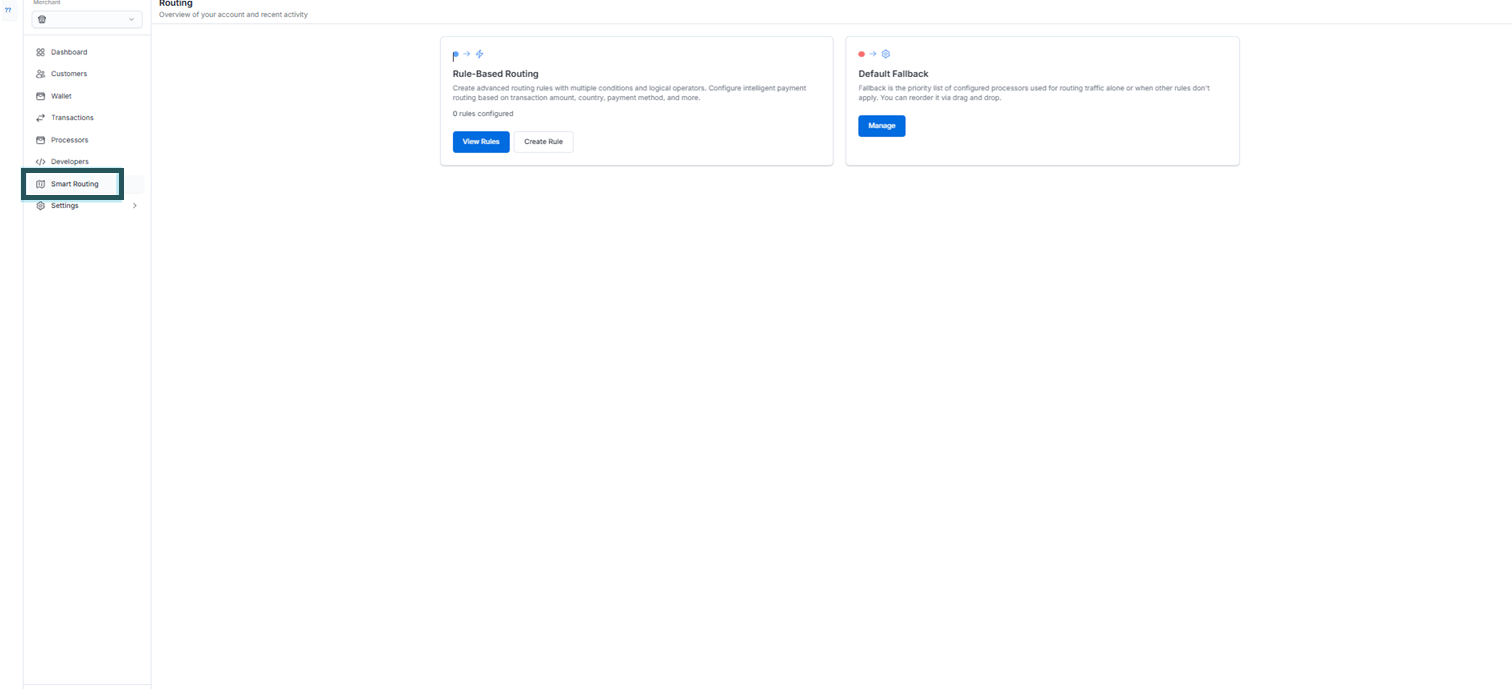
### **Step 1: Go to Payout Routing Section**
* Navigate to:
**Workflow → Payout Routing**
 ### **Step 2: Choose Routing Rule Type**
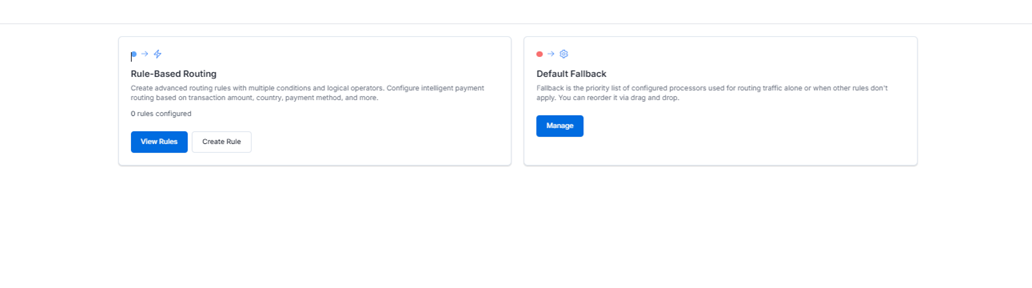 You can choose from three available routing strategies:
| Routing Type | Description |
| ---------------------------- | -------------------------------------------------------------- |
| **Volume-Based Routing** | Route based on volume thresholds per connector |
| **Rule-Based Routing** | Define rules based on payout attributes (e.g. country, amount) |
| **Default Fallback Routing** | Fallback order if no rule matches |
Click on the desired type to configure.
### **Step 3: View Existing Rules**
All your created routing rules will be visible on the main page of the **Payout Routing** section.
### **Step 4: Activate a Routing Rule**
* Only **one** routing rule can be active at a time.
* To activate, **select a rule**, then click **“Activate Configuration.”**
### **Step 5: No Rule Active?**
You can choose from three available routing strategies:
| Routing Type | Description |
| ---------------------------- | -------------------------------------------------------------- |
| **Volume-Based Routing** | Route based on volume thresholds per connector |
| **Rule-Based Routing** | Define rules based on payout attributes (e.g. country, amount) |
| **Default Fallback Routing** | Fallback order if no rule matches |
Click on the desired type to configure.
### **Step 3: View Existing Rules**
All your created routing rules will be visible on the main page of the **Payout Routing** section.
### **Step 4: Activate a Routing Rule**
* Only **one** routing rule can be active at a time.
* To activate, **select a rule**, then click **“Activate Configuration.”**
### **Step 5: No Rule Active?**
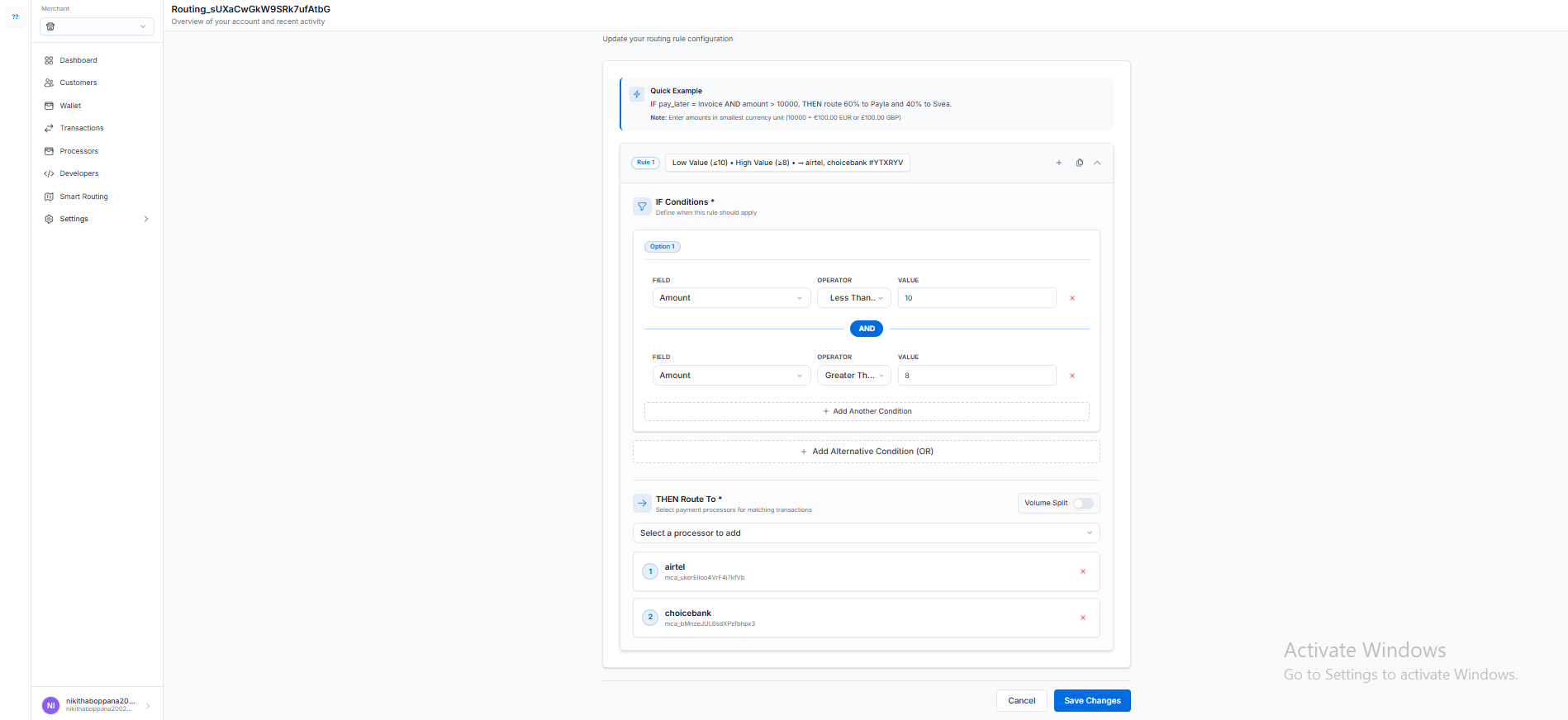 If no custom rule is activated, Pesaswap will route payouts using the **Default Fallback Priority**, which is the order in which connectors are listed.